
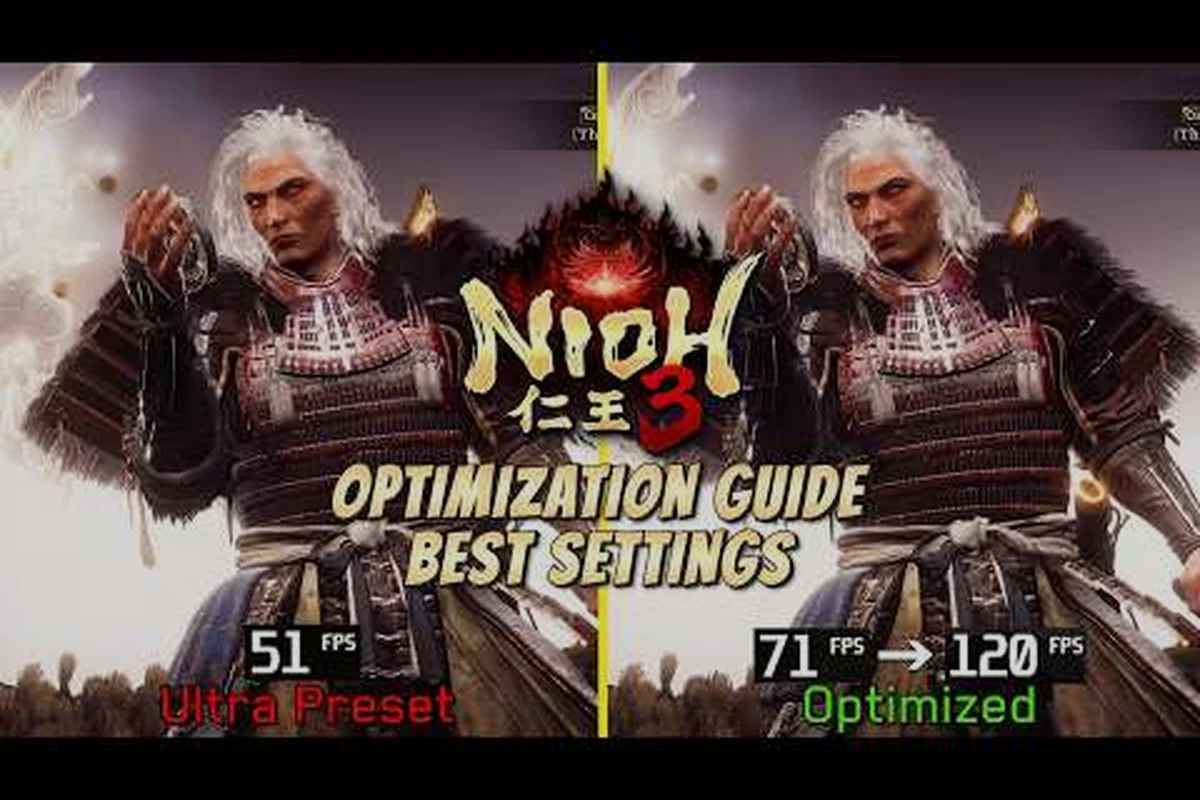
Nioh 3 settings for best performance aren't just about chasing higher numbers in a benchmark overlay. Team Ninja's latest Soulslike demands precise timing for Ki Pulses, burst counters, and Yokai Shift windows, which means a single frame hitch can turn a clean parry into a death screen. The right combination of graphics options, upscaling tech, and display settings keeps combat readable while protecting your GPU headroom, and that matters whether you're on a high-end PC, a Steam Deck, or a console. This guide breaks down the exact settings that reduce stutter, stabilize frame pacing, and keep input latency low, so you can spend less time fighting the engine and more time fighting the Yokai. If you're also wondering how long the campaign takes or how to accelerate your Amrita income, the same performance foundation carries over to faster leveling and smoother farming runs. The performance conversation is different this time because Nioh 3 introduces larger open zones with dynamic weather, and those environments stress even the most capable hardware in ways the corridor-heavy Nioh 2 never did.
Why Nioh 3 Settings for Best Performance Start with Frame Pacing
Most players check their average FPS, but the number that actually ruins a Nioh 3 run is frame pacing — the consistency of time between each rendered frame. A game can average 90 FPS and still feel terrible if every few seconds a frame takes 40 milliseconds to appear. Community testing on the PC version, as of August 2026, points to shader compilation and asset streaming as the two main culprits behind the stutter that players report during the first hour of each new region.
Why does this matter so much for a Soulslike? Because the combat system is built around rhythm:
-
Ki Pulse timing windows are muscle memory, and a dropped frame shifts your rhythm just enough to miss the pulse.
-
Burst counters require reacting to a red flash, and input latency spikes from frame drops make those reactions unreliable.
-
Yokai Shift animations read better at stable frame times, which helps you time your finishers against enemy recovery frames.
The official Nioh 3 launch trailer on PlayStation's channel shows the game running at a smooth 60 FPS on console, which is the baseline that Team Ninja tuned the combat around. On PC, reaching that same consistency requires more than just lowering every slider to Low. Because the engine calculates hitboxes and enemy AI on a fixed tick, the renderer needs to deliver frames on time, and that's why the settings that matter most aren't the flashy ones — they're the ones that prevent GPU load spikes during particle-heavy fights. Displays with VRR (variable refresh rate) can mask minor pacing issues because the panel adjusts its refresh to match the GPU's output, but VRR cannot fix a frame that takes three times longer than it should. The Nioh 3 settings for best performance on a high-refresh monitor also differ from what works on a standard 60Hz panel, so you need to match your configuration to your actual display hardware.
PC Graphics Settings for Best Performance: A Tiered Approach
On PC, Nioh 3 offers a wide range of graphics options, but not all of them deserve the same GPU budget. Based on community benchmarks and player reports, the smart approach is to prioritize visual clarity where it matters — enemy silhouettes, particle effects, and environmental readability — while cutting the settings that eat performance without adding combat value. The three tiers below give you a starting point, and you can mix and match based on your hardware and your tolerance for visual tradeoffs.
DLSS, FSR, and Frame Generation: Which Upscaler Wins?
Nioh 3 supports both DLSS and FSR 3, and the choice between them changes how the game looks and feels. DLSS on an RTX card delivers the cleanest image quality at 1440p and 4K, while FSR 3 is the better option for AMD GPUs and handhelds because it includes Frame Generation, which can nearly double your frame rate. However, frame generation adds a small amount of input latency, and for a game where parry timing is measured in frames, that tradeoff deserves careful thought before you enable it on a competitive run.
| Upscaler | Best For | Frame Generation | Input Latency Impact | Recommended Setting |
|---|---|---|---|---|
| DLSS Quality | RTX 3060 and up at 1440p/4K | Yes (DLSS 3) | Low | On |
| FSR 3 Quality | AMD GPUs, Steam Deck | Yes | Low to Medium | On |
| Native TAA | High-end GPUs with headroom | No | None | Only if you exceed 100 FPS |
| Resolution Scaling | Low-end GPUs | No | None | Last resort |
Shadow, Lighting, and Volumetric Fog Tradeoffs
Three settings cause most of the GPU load spikes in Nioh 3: Volumetric Fog, Ambient Occlusion, and shadow quality. Volumetric fog is the biggest offender because the game uses it heavily in mist-covered regions, and every particle interaction taxes the GPU. Dropping it from High to Medium removes almost none of the visual information you need for combat, because enemy silhouettes remain clearly visible through the mist, and the same logic applies to ambient occlusion in dark shrine interiors.
| Setting | Quality Tier | Balanced Tier | Performance Tier |
|---|---|---|---|
| Volumetric Fog | High | Medium | Low |
| Ambient Occlusion | High | Medium | Off |
| Shadow Quality | High | Medium | Low |
| Texture Quality | High | High | Medium |
| Motion Blur | Off | Off | Off |
| Dynamic Resolution | Off | On (90%) | On (75%) |
The common thread is that texture quality and character detail should stay as high as your VRAM allows, because enemy armor and weapon readability matter for identifying attack patterns. Everything that affects global lighting or post-processing can drop a tier without hurting combat, and that's where most of your performance headroom comes from. If you're just getting your bearings in the game, our things to do first guide includes the recommended system requirements and early-game setup priorities that pair well with these performance settings.
Steam Deck Settings for Best Performance on the Go
The Steam Deck has become a popular way to play Nioh 3, and the good news is that the game runs well at 800p with the right configuration. The bad news is that default settings will drain your battery in under two hours and cause thermal throttling in longer sessions. According to player reports on community forums, the key is to cap the frame rate at 40 FPS and use FSR 3 to keep the GPU from maxing out, which preserves both battery life and frame time consistency.
Steam Deck TDP and Battery Life Tradeoffs
Setting a TDP limit on the Steam Deck is the single most effective way to extend battery life without ruining the experience. At 15W TDP, Nioh 3 holds a steady 40 FPS in most areas, but dropping to 11W reduces fan noise and adds roughly 45 minutes of playtime while only costing a few frames in heavy particle scenes. The Steam Deck OLED model handles this even better thanks to its more efficient display, and players report that the 90Hz screen makes 45 FPS a viable target when you want extra smoothness.
| Setting | Default | Optimized |
|---|---|---|
| Resolution | 1280x800 | 1280x800 |
| FSR | Off | FSR 3 Quality |
| Frame Rate Cap | 60 | 40 |
| TDP Limit | 15W | 11W |
| Volumetric Fog | High | Low |
| Shadow Quality | High | Low |
The tradeoff is simple: 40 FPS on a 40Hz refresh rate gives you even frame pacing, which feels far smoother than an unstable 50-60 FPS that constantly dips. Since the Steam Deck's screen refreshes at 40Hz when you set the cap, every frame lands on time, and that consistency is exactly what the combat system needs during extended sessions. For more on keeping your healing economy healthy while playing on the go, check our elixir guide, which also covers Steam Deck-specific display tweaks that complement these performance choices.
Console Display Settings: Choosing the Right Performance Mode
Console players don't have to fiddle with individual graphics options, but the Nioh 3 settings for best performance still depend on your display's refresh rate and VRR support. The key decision is whether to prioritize resolution, frame rate, or a hybrid approach, and the answer changes based on whether your TV can handle variable refresh rates or high refresh modes.
PS5 Pro and Xbox Series X Enhancements
The PS5 Pro version of Nioh 3 includes a 120Hz mode that targets 60 FPS but can reach higher when the scene allows, and it pairs well with VRR displays. On a standard PS5, the Performance mode locks to 60 FPS at a dynamic resolution that typically sits around 1440p, while the Resolution mode targets 4K but can drop below 50 FPS in busy fights. Community reports suggest that the 120Hz mode with VRR is the best experience because it smooths out the frame time spikes that a fixed 60 FPS lock cannot hide, especially during the game's larger open-zone battles.
| Mode | Resolution | Frame Rate | VRR Support | Best For |
|---|---|---|---|---|
| Resolution | 4K dynamic | 50-60 FPS | Partial | Screenshots and exploration |
| Performance | 1440p dynamic | 60 FPS locked | Yes | Most players |
| 120Hz | 1440p to 4K dynamic | 60-120 FPS | Yes | VRR displays and competitive play |
Motion Blur should be turned off in every mode, because the game's camera already does enough work during burst counters and the extra blur hides enemy wind-up animations. The film grain option also adds nothing to combat readability and can cause banding on OLED panels, so disabling it is a free visual upgrade. If you're playing on a base console without VRR, the Performance mode is almost always the right call because a locked 60 FPS beats a higher resolution that stutters during boss fights.
How Stable Performance Settings Accelerate Leveling and Amrita Farming
Once your Nioh 3 settings for best performance are dialed in, the benefits extend beyond comfort. A stable frame rate directly affects how quickly you learn boss patterns, which shortens the time it takes to clear missions and compounds into faster leveling. If you're asking how long to beat the main campaign, the answer depends heavily on how many deaths you take to performance-related issues — and that number drops dramatically when the game runs smoothly.
According to community data, Nioh 3 takes most players around 40 to 50 hours to beat the main campaign, with completionist runs stretching past 80 hours when you factor in all 101 bosses and the optional Bloodedge Demon fight. The biggest variable in that range is how often you die, and a large share of those deaths come from frame drops during heavy particle effects. Players who lock in a stable 60 FPS report clearing bosses like Baba Nobuharu in fewer attempts because they can actually read the tells instead of reacting to a slideshow.
To level up fast, you want to minimize downtime between missions, and that means farming Amrita efficiently. The most popular farming route involves replaying a late-game sub-mission with high Amrita multipliers, stacking Kodama blessings, and using a weapon that clears packs quickly. But here's the catch: the route is only efficient if your game stays smooth while multiple enemies trigger particle effects simultaneously. A stutter at the wrong moment can break your combo chain and turn a three-minute farm run into a five-minute recovery, which is why the settings above matter just as much as your build.
According to Rock Paper Shotgun's Nioh 3 weapons tier list, the best farming weapons balance reach and speed, which reinforces the point that performance and build choice go hand in hand. A fast weapon with poor frame pacing is still slower than a heavy weapon with a stable frame time, because every missed Ki Pulse costs you stamina and every dropped input costs you damage. If you're looking for a dedicated Nioh 3 amrita farming guide, the performance tips above are the foundation that makes any route profitable.
The performance-to-progression loop works like this:
-
Fewer deaths mean less Amrita lost on recovery runs.
-
Stable frame pacing means cleaner Ki Pulse timing, which translates to more damage per stamina bar.
-
Faster mission clears mean more Amrita per hour, which directly answers how to get Amrita in bulk.
-
Reduced input latency means a higher burst counter success rate, which shortens even the toughest boss fights.
Understanding how to get Amrita consistently is the difference between a 40-hour campaign and a 60-hour one, and the same logic applies to every other resource in the game. If you're new to the game, our beginner guide covers the core combat loop that these performance settings are designed to protect. The bottom line is that Nioh 3 settings for best performance aren't a one-time checkbox — revisit them when you change hardware, when a new driver drops, or when you switch between docked and handheld play. The game's combat is demanding enough without the engine working against you.
Frequently Asked Questions
What are the best Nioh 3 settings for best performance on a mid-range PC?
Start with the Balanced tier: Volumetric Fog on Medium, Ambient Occlusion on Medium, shadows on Medium, and FSR 3 Quality with Frame Generation enabled. Cap the frame rate at 60 FPS and disable Motion Blur. This combination keeps combat readable while maintaining a stable frame time on GPUs like the RTX 3060 or RX 6700 XT.
How long does it take to beat Nioh 3?
Most players finish the main campaign in 40 to 50 hours, according to community reports. Completionist runs that include all side missions, the 101 bosses, and the secret Bloodedge Demon fight typically take 80 hours or more. Your actual time depends heavily on how quickly you adapt to the combat and how stable your frame rate stays during boss fights.
How do I level up fast in Nioh 3?
Focus on replaying high-Amrita sub-missions with Kodama blessings active, stack Amrita-boosting accessories, and clear missions without dying to preserve your earned Amrita. A stable 60 FPS helps here because it keeps your Ki Pulse timing consistent, which directly translates to faster kills and fewer resets during farming runs.
What is the best way to get Amrita in Nioh 3?
The most efficient method is farming a late-game sub-mission with multiple enemies and a high Amrita multiplier, then using the Blacksmith to roll Amrita-gain bonuses on your gear. Community testing shows that combining Kodama blessings with a fast-clearing weapon yields the best Amrita per minute, and smooth performance ensures you don't lose progress to avoidable deaths.
Does Nioh 3 support 120Hz on consoles?
Yes, the PS5 Pro version includes a 120Hz mode that targets 60 FPS and can scale higher on VRR displays. Standard PS5 and Xbox Series X offer Performance and Resolution modes, with Performance locking to 60 FPS at dynamic 1440p. For the smoothest experience, enable VRR if your TV supports it.